Monday, October 29, 2018

Document Camera


Did you read the title of this blog and think to yourself, "What is a document camera?"  For decades, classroom teachers had a device similar to a document camera, but we called them overhead projectors before the digital age. Like most technology, it evolves, and document cameras have a few more features than the overhead projector had back in the day. Our Ballard teachers often refer to them as an "Elmo."

Recently, at Ballard East, all classroom teachers received a brand new document camera.  This one is called a HoverCam (Solo8Plus).  The HoverCam is a compact device with high-resolution (13 Megapixel Camera Module).  The HoverCam is a multifunctional digital camera (13MP still image) that can scan documents, take still pictures,  and video record (time-lapse video, ultra-clear details, and slow motion).  The HoverCams uses software, KnoteSter, for interactive whiteboarding, annotation, desktop marking, document camera, and lesson recording and sharing.  This software also allows teachers to do a side-by-side, multi-split, snapshot, record, and whiteboard options.

HoverCam in action.


Mrs. Jordison's class is writing autobiography poems.  Here you see her HoverCam displaying a split screen.  This allows for the class to view a list of adjectives (still picture) on the left and Mrs. Jordison completing an example poem on the right.


Mrs. DeHamer displaying her textbook onto her whiteboard.


Ms. Demrys HoverCam is displaying a math problem as it is being solved. 


HoverCam (Solo8 Plus)

Twitter: @BCSDTechEDU
(Tweets are related to technology enhancing the Ballard classrooms.)

Hashtags:

West - #bcsdwest

East - #bcsdeast

Middle School - #bcsdms

High School - #bcsdhs


District - #BCSDTechEDU

Thursday, October 4, 2018

Interactive Whiteboards at Ballard


Welcome back to school and to the BallardTech Blog!


Interactive Whiteboards

At each of the Ballard elementary buildings, our classroom teachers have access to a device called a MimioTeach.  This device turns a classroom teacher's whiteboard into an interactive whiteboard (IWB).  A whiteboard is merely a board that can be used for writing, but an IWB is used to interact with the computer. For example, the contents written on an IWB can be stored for future use. Students and teachers are able to use a Mimio pen device to move objects projected from a teacher's computer to the IWB, write, highlight, color, etc.

Ballard's West building Technology Lead Teacher, Kim Mikkelsen, shared what she likes about her IWB. "My students love when they get to be the "teacher helper."  I have more active participation and the kids can't wait to have their turn.  I love seeing my kids eager to learn.  I use our interactive whiteboard frequently because it provides movement in my classroom so students are more focused and are able to concentrate on the lesson.  When they move, more blood and oxygen flow to the brain increasing attention."

Her students also shared what they like about the IWB:  Nash: " I like using the interactive whiteboard because we get to share out ideas."  Ayla: "I like using the magic pen because it's way better than cutting and sorting words. It makes it more fun!"  Drew: "I like using the interactive whiteboard because it's big so we can see it and it's fun to learn with it."


Kim Mikkelsen's MimioTeach in action.

Any Ballard elementary teacher that would like assistance with their classroom MimioTeach may reach out to their building Technology Lead, a technology team member, or the Technology Integrationist.

Teachers are able to locate activities and lessons that have been created and shared by other professional teachers at MimioConnect . Kim Mikkelsen and Jody Kelley have sorted lessons by subject-specific areas.  These lessons can be found in the Ballard District building's public folders under Mimio Lessons or Interactive Whiteboard lessons.  If a teacher would like to create their own activity or lesson, they have this opportunity as well.

Wishing you and your students the BEST year ever!

Twitter: @BCSDTechEDU
(These tweets are related to technology enhancing the Ballard classrooms.)

Hashtags:

West - #bcsdwest

East - #bcsdeast

Middle School - #bcsdms

High School - #bcsdhs

District - #BCSDTechEDU


Friday, May 18, 2018

The Bulldog's Adventure


The Bulldog's Adventure


Back in May 2017, I read a post by teacher Lisa Davis on Google+. She was seeking teachers who would be interested in participating in her "Bulldog's Adventure" project/activity.  You may ask yourself, what is Google+?  It is a Google-based social networking platform where people, including thousands of teachers worldwide, connect, share ideas and begin their collaboration with others.

I contacted Lisa and asked for more detail in regards to her project.  After reading her response, her project reminded me of the "Flat Stanley" projects our 3rd-grade teachers and students at Ballard have been doing for many years.  The thing I liked about the Bulldog's Adventure was that it was going to allow our students to see this similar project from a different point of view.  Instead of being the person who begins the project, students are participating and collaborating with another class to help them complete their project. At the same time, they also learn about their own state and other places around the world.

The month of May can be, let me rephrase that, the month of May is one of the busiest months for a classroom teacher, yet I went out on a limb and wanted to share this idea with our Ballard teachers.  I was hoping this would do one of two things: 1) allow teachers to see and hear about this opportunity or 2) inspire a teacher or two to participate.  I did receive three responses from different teachers stating that they were interested in participating in this activity.  I thanked them and wished them a fantastic summer break, while also sharing that I would be in touch at the beginning of the 2017-2018 school year with more details to follow.

Just like clockwork, summer break flashed in front of us for a brief moment and then we found ourselves back at school.  In August 2017, I received another email from Lisa Davis.  This email was addressed to all those who showed interest in her Bulldog's Adventure project.  She shared the finalized planning stages and included a shared Google Doc that combined the directions and ideas for the project.  The basics for each teacher/class were to contribute at least one slide to the shared Google Slide journal that shows a picture of the Bulldog in a significant location near their school (or in a classroom) and a short narrative about the picture.  (Monument, landmark, a body of water, mountains, historical location, national park, etc.) You can also include a picture of your school on a new slide or picture of your class that is participating!  Partner classes were also asked to mail the Bulldog to his next location which will be noted on the shared Google Sheet.  

The originating classroom planned to log the Bulldog's journey on a large map with push pins and string while reviewing the travel journal (Google Slideshow) each week on the morning announcements (the originating school records their announcements).  They also have been asking a weekly math question for the students to answer (ex. how many miles did the bulldog travel between point A and point B, if the UPS truck gets 10 miles per gallon of gas, how many gallons of gas did it use to bring the bulldog to his next location, etc.) 

Lisa shared a link to the postcards she used for her map.  Thank You, Lisa!


Other possible activities that could be done with this project include but are not limited to the following:

  • Use the Google Slideshow to share information about each location.
  • Have a weekly math challenge related to the miles the Bulldog travels. (how many miles did the bulldog travel between point A and point B, if the UPS truck gets 10 miles per gallon of gas, how many gallons of gas did it use to bring the bulldog to his next location, etc.)
  • Have students participate in a Genius Hour and research a location that they would like to know more about.  Present some interesting facts about what they find out to their classmates.
  • Make a travel board and include the interesting facts they researched as well as pictures of those locations students may want to visit!
  • Participate in a Google Hangout with a partner school to compare and contrast communities.

Similar to May, August is nonetheless another time of the school year where there is definitely not enough hours in a day for teachers, administrators or parents.  Yet, once again, I dared to do the unthinkable and reached out to the three teachers that had shared an interest in participating in the Bulldog's Adventure this school year.  In this email, I  shared the original and newly developed details in regards to the project and the tentative, most things are tentative for educators, Bulldog arrival date of April 2018. 

Unfortunately, the Bulldog had a rough winter break and found a new home in which no one quite knows his address yet.  So, as all teachers do (day in and day out), Lisa was flexible and made adjustments to her initial plans.  She purchased a few more "Bulldogs" and readjusted the "itinerary" for the Bulldog's travels.

Here you will find a shared doc of all the different locations the Bulldog will/had travel(ed) this school year, here. (http://bit.ly/2rM4L48 )

Due to the fact that the Google Slide shares pictures of students around the world, I will not be sharing this part of the project.  I did share it with each classroom teacher who participated in the project. Below are the slides from the two Ballard third grade classes (Jordison and DeHamer) created together.


Digital Citizenship at the High School Continued

Digital Citizenship at the High School Continued

Since the Dec-Jan 17-18 Dimension, when we shared the “what” and the “why” about the implementation of digital citizenship lessons at the high school, teachers have presented a total of six digital citizenship lessons related to online safety. We have received positive feedback from students, staff, and parents, and we look forward to building on this foundation. As this school year is coming to a close, we want to share the resources presented to students and staff.  Below are the lesson presentation titles and links to view the lessons.

Note: Due to the fact that these lessons were specifically designed for our Ballard students, in order for a parent/guardian to view these lessons, please have your Ballard student log into his/her Ballard account on a Chrome browsers before selecting the link or entering the URL in a Chrome browser Omnibox (address bar).

Moving Forward
The HS Technology Team will analyze and discuss the Clarity BrightBytes data in May to assist with guiding high school teachers for the 2018 - 2019 school year. This data will be presented to high school teachers and will be followed by discussions regarding a direction they would like to go for the 2018 - 2019 school year.  We all are looking forward to determining a focus to directly impact our high school students.

Thank you
At this time we would like to thank the following people. These lessons would not be a success without them.  

Ballard HS Teachers for presenting these lessons, providing a safe environment for discussions and providing insight to help guide the development of lesson topics and design.

Ballard Student Council for creating a Google Form to assist students with reporting bullying incidents.

Chief Pote for all his helpful insight in regards to lesson topics for our students

Assistant Story County Attorney/Lead Criminal Prosecutor, Ms. Meredith, for all her insight in regards to the legality issues and sharing her resources.

Ballard HS Technology Team members (Ms. Mein, Mrs. Endres, Mrs. Ronca, Mr. Steenhagen, and Mr. Smith) for volunteering all their time (a true testament that you deeply care for our Ballard students, staff, and community) to analyze and discuss data, communicate and collaborate with high school teachers, and to see the importance of our students learning how to think critically, behave safely, and participate responsibly in our digital world.

Ballard Administration (Mr. Ronca, Mr. Deason, Mr. McGill and Mr. Maxey) for their indefinite support.

Ballard Students for discussing these topics with their advisor, classmates, and parents, taking the time to complete surveys that provided a student voice to help guide the development of lesson topics and design.

Ballard Parents/Guardians for reading your emails from the school and discussing these topics at home with your child/ren.


Proud to be a Bomber!

Wednesday, January 3, 2018

Pear Deck: Engage Students While Presenting Information

For those days when you need to front-load students with information, the days when it seems like you do a lot of talking, the days when you worry about whether students are "getting it" for those days  you might want to consider Pear Deck.


Types of Responses. The starred
options are not available on the
free account.
Pear Deck is a presentation tool that increases engagement by adding student feedback opportunities within each slide. Each student can respond to the question on their own device. The teacher can choose whether to share the responses with the class (names are hidden). The presentation can be lead by the teacher, or students can move at their own pace through the slides.
An example of a slide with a free text response option.

Creating the Presentation

The first step is to plan your presentation, then add the questions based on your goals for each slide. There are three options for creating your slides and adding questions:
1. Upload an already created Google Slide Presentation into Pear Deck.
2. Create your presentation within Pear Deck.
3. Use the Pear Deck Add-on within Slides.

Presenting

When it comes time to lead the class, you will choose to present your slides within Pear Deck or through the add-on in Slides. Then, you will simply have students go to joinpd.com. The students will enter the code that is displayed on the screen. Once all students have entered, their screens will reflect the slide you are on as long as you have selected Teacher-Pace, instead of Student-Pace. This video gives you a feel for what using Pear Deck in a classroom looks like.

What is Free?

Pear Deck has a free option as well as a premium option. Here is the pricing comparison. I have used PearDeck several times over the last two school years, and the free option has been adequate for my needs. I did sign up for the premium trial and the draggable option is nice, but not necessary. (See image below to see how I used this.) Also, I have hit my 5 uploads from Google Slides, so now all of my presentations have to be created within Pear Deck, which is limiting.

Draggable Slide: A Premium Feature.


Interested? Send Mrs. Dovre an email to talk through ideas for using Pear Deck or for help with getting started.

Thursday, November 30, 2017

Digital Citizenship Conversations at the High School


Digital Citizenship: the ability to think critically, behave safely, and participate responsibly in the digital world.
"My students were amazed at
how easily people gave out their passwords."
Teacher Feedback
On November 15th, the high school building held our first Digital Citizenship lesson for all students in grades 9-12. Moving forward, approximately every other week advisory teachers will lead a discussion about a digital citizenship topic. These topics include: Online Safety and Privacy, Recognizing and Preventing Cyberbullying, Legal Use of Web Content, Digital Footprint and Reputation, and Evaluating Online Information.
“This was a good lesson, and I think the
majority of the students gained awareness of online safety.”
 - Teacher Feedback
We chose to spend time on digital citizenship because data collection from the past two years has shown there is a need. Annually since 2015, students, parents, and teachers representing our HS building have completed a survey, designed by Clarity BrightBytes, about technology access, use, and knowledge. Our High School Technology Team met several times at the beginning of the school year to analyze the data and discuss areas for improvement. Digital citizenship was identified as one of these areas, and the team determined to focus our attention there because research shows digital citizenship is important for our health and success and it closely aligns to our District Mission Statement. The High School Technology Team presented the data and team reflections to all high school teachers, and teacher insights have since guided the development of lesson topics and design.

After the first lesson, each student was emailed the Protect Your Identity presentation link* along with a link to complete a student survey. Both links require the student to be logged into his/her Ballard Google account in order to be viewed.

Below, you will find a family tip sheet in regards to the Protect Your Identity discussion.

Family Tip: Scams and Identity Theft

*Note: Due to the fact that these lessons were specifically designed for our Ballard students, in order for a parent/guardian to view these lessons, please have your Ballard student log into his/her Ballard account on a Chrome browsers before selecting the link or entering the URL in a Chrome browser Omnibox (address bar).


Tuesday, November 28, 2017

Hour of Code - Computer Science Week


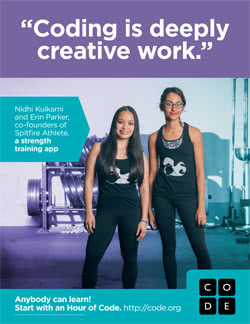
One of our all-time favorite weeks of the school year is quickly approaching us, the celebration of Computer Science Week with  “Hour of Code” will be December 4th - 8th.  In the past 5 years of celebrating the "Hour of Code" the quality and quantity of activities have more than doubled.  Check out the Hour of Code Activities to locate the best one(s) for you and your class or group.


Never participated, no worries we have you covered.  Feel free to use the links listed below to help you get started.

Show one or all of these videos below to inspire students:


What Most Schools Don't Teach ( 5 min ) - http://viewpure.com/nKIu9yen5nc?ref=bkmk

2014 Message from the President (1:17) - http://safeshare.tv/w/GQJpuhlVtK or
                                                                                                              http://viewpure.com/6XvmhE1J9PY?ref=bkmk

BrainPOP Video:


Beginner Coding Games:


Certificates for participating - https://code.org/certificates


Games of All Levels - https://hourofcode.com/us/learn


Also, Khan Academy celebrates Hour of Code - Computer Science Week.

hourofcode.png
Hour of Drawing with Code: Students will learn to program using JavaScript, one of the world's most popular programming languages via two great options:
  • Drag-and-drop: block-based coding for younger students with less typing experience and students on tablet devices (ages 8+).
  • Typing: keyboard-based coding for older students (ages 10+).
Hour of WebpagesStudents will learn to make their own webpages using the basics of HTML and CSS (ages 10+).
Hour of Databases: Students will learn the fundamentals of databases using SQL to create tables, insert data into them, and do basic querying (ages 12+).


You may ask, "Why try computer programming?".  

According to Code. org:

*It is estimated that over the next 10 years there will be over 1.4 million (yes million) jobs/careers in Computer Science and only 400,000 grads that will be qualified. That is a shortage of a million people.
*Programming helps one understand computers.  A computer is only a tool.  If you (and/or your students) learn how to write simple programs, you (and/or your students) will gain more knowledge about how a computer works.
*Writing a few simple programs increases your (and/or your students’) confidence level.  Many people find great personal satisfaction in creating a set of instructions that solve a problem.
*Learning programming lets you (and/or your students) find out quickly whether if you (and/or your students) like programming and whether if you (and/or your students) have the analytical turn of mind programmers need.  Even if you (and/or your students) decide that programming is not for you (and/or your students), understanding the process certainly will increase your (and/or your students’) appreciation of what programmers and computers can do.

Please keep in mind, you can code/ computer program all year long.  It doesn't just have to take place the week of the celebration of "Hour of Code".


Happy Coding!