Friday, May 18, 2018

Digital Citizenship at the High School Continued

Digital Citizenship at the High School Continued

Since the Dec-Jan 17-18 Dimension, when we shared the “what” and the “why” about the implementation of digital citizenship lessons at the high school, teachers have presented a total of six digital citizenship lessons related to online safety. We have received positive feedback from students, staff, and parents, and we look forward to building on this foundation. As this school year is coming to a close, we want to share the resources presented to students and staff.  Below are the lesson presentation titles and links to view the lessons.

Note: Due to the fact that these lessons were specifically designed for our Ballard students, in order for a parent/guardian to view these lessons, please have your Ballard student log into his/her Ballard account on a Chrome browsers before selecting the link or entering the URL in a Chrome browser Omnibox (address bar).

Moving Forward
The HS Technology Team will analyze and discuss the Clarity BrightBytes data in May to assist with guiding high school teachers for the 2018 - 2019 school year. This data will be presented to high school teachers and will be followed by discussions regarding a direction they would like to go for the 2018 - 2019 school year.  We all are looking forward to determining a focus to directly impact our high school students.

Thank you
At this time we would like to thank the following people. These lessons would not be a success without them.  

Ballard HS Teachers for presenting these lessons, providing a safe environment for discussions and providing insight to help guide the development of lesson topics and design.

Ballard Student Council for creating a Google Form to assist students with reporting bullying incidents.

Chief Pote for all his helpful insight in regards to lesson topics for our students

Assistant Story County Attorney/Lead Criminal Prosecutor, Ms. Meredith, for all her insight in regards to the legality issues and sharing her resources.

Ballard HS Technology Team members (Ms. Mein, Mrs. Endres, Mrs. Ronca, Mr. Steenhagen, and Mr. Smith) for volunteering all their time (a true testament that you deeply care for our Ballard students, staff, and community) to analyze and discuss data, communicate and collaborate with high school teachers, and to see the importance of our students learning how to think critically, behave safely, and participate responsibly in our digital world.

Ballard Administration (Mr. Ronca, Mr. Deason, Mr. McGill and Mr. Maxey) for their indefinite support.

Ballard Students for discussing these topics with their advisor, classmates, and parents, taking the time to complete surveys that provided a student voice to help guide the development of lesson topics and design.

Ballard Parents/Guardians for reading your emails from the school and discussing these topics at home with your child/ren.


Proud to be a Bomber!

Wednesday, January 3, 2018

Pear Deck: Engage Students While Presenting Information

For those days when you need to front-load students with information, the days when it seems like you do a lot of talking, the days when you worry about whether students are "getting it" for those days  you might want to consider Pear Deck.


Types of Responses. The starred
options are not available on the
free account.
Pear Deck is a presentation tool that increases engagement by adding student feedback opportunities within each slide. Each student can respond to the question on their own device. The teacher can choose whether to share the responses with the class (names are hidden). The presentation can be lead by the teacher, or students can move at their own pace through the slides.
An example of a slide with a free text response option.

Creating the Presentation

The first step is to plan your presentation, then add the questions based on your goals for each slide. There are three options for creating your slides and adding questions:
1. Upload an already created Google Slide Presentation into Pear Deck.
2. Create your presentation within Pear Deck.
3. Use the Pear Deck Add-on within Slides.

Presenting

When it comes time to lead the class, you will choose to present your slides within Pear Deck or through the add-on in Slides. Then, you will simply have students go to joinpd.com. The students will enter the code that is displayed on the screen. Once all students have entered, their screens will reflect the slide you are on as long as you have selected Teacher-Pace, instead of Student-Pace. This video gives you a feel for what using Pear Deck in a classroom looks like.

What is Free?

Pear Deck has a free option as well as a premium option. Here is the pricing comparison. I have used PearDeck several times over the last two school years, and the free option has been adequate for my needs. I did sign up for the premium trial and the draggable option is nice, but not necessary. (See image below to see how I used this.) Also, I have hit my 5 uploads from Google Slides, so now all of my presentations have to be created within Pear Deck, which is limiting.

Draggable Slide: A Premium Feature.


Interested? Send Mrs. Dovre an email to talk through ideas for using Pear Deck or for help with getting started.

Thursday, November 30, 2017

Digital Citizenship Conversations at the High School


Digital Citizenship: the ability to think critically, behave safely, and participate responsibly in the digital world.
"My students were amazed at
how easily people gave out their passwords."
Teacher Feedback
On November 15th, the high school building held our first Digital Citizenship lesson for all students in grades 9-12. Moving forward, approximately every other week advisory teachers will lead a discussion about a digital citizenship topic. These topics include: Online Safety and Privacy, Recognizing and Preventing Cyberbullying, Legal Use of Web Content, Digital Footprint and Reputation, and Evaluating Online Information.
“This was a good lesson, and I think the
majority of the students gained awareness of online safety.”
 - Teacher Feedback
We chose to spend time on digital citizenship because data collection from the past two years has shown there is a need. Annually since 2015, students, parents, and teachers representing our HS building have completed a survey, designed by Clarity BrightBytes, about technology access, use, and knowledge. Our High School Technology Team met several times at the beginning of the school year to analyze the data and discuss areas for improvement. Digital citizenship was identified as one of these areas, and the team determined to focus our attention there because research shows digital citizenship is important for our health and success and it closely aligns to our District Mission Statement. The High School Technology Team presented the data and team reflections to all high school teachers, and teacher insights have since guided the development of lesson topics and design.

After the first lesson, each student was emailed the Protect Your Identity presentation link* along with a link to complete a student survey. Both links require the student to be logged into his/her Ballard Google account in order to be viewed.

Below, you will find a family tip sheet in regards to the Protect Your Identity discussion.

Family Tip: Scams and Identity Theft

*Note: Due to the fact that these lessons were specifically designed for our Ballard students, in order for a parent/guardian to view these lessons, please have your Ballard student log into his/her Ballard account on a Chrome browsers before selecting the link or entering the URL in a Chrome browser Omnibox (address bar).


Tuesday, November 28, 2017

Hour of Code - Computer Science Week


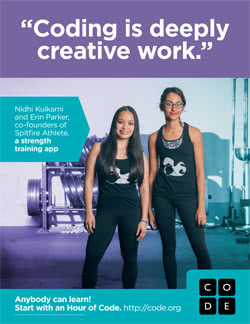
One of our all-time favorite weeks of the school year is quickly approaching us, the celebration of Computer Science Week with  “Hour of Code” will be December 4th - 8th.  In the past 5 years of celebrating the "Hour of Code" the quality and quantity of activities have more than doubled.  Check out the Hour of Code Activities to locate the best one(s) for you and your class or group.


Never participated, no worries we have you covered.  Feel free to use the links listed below to help you get started.

Show one or all of these videos below to inspire students:


What Most Schools Don't Teach ( 5 min ) - http://viewpure.com/nKIu9yen5nc?ref=bkmk

2014 Message from the President (1:17) - http://safeshare.tv/w/GQJpuhlVtK or
                                                                                                              http://viewpure.com/6XvmhE1J9PY?ref=bkmk

BrainPOP Video:


Beginner Coding Games:


Certificates for participating - https://code.org/certificates


Games of All Levels - https://hourofcode.com/us/learn


Also, Khan Academy celebrates Hour of Code - Computer Science Week.

hourofcode.png
Hour of Drawing with Code: Students will learn to program using JavaScript, one of the world's most popular programming languages via two great options:
  • Drag-and-drop: block-based coding for younger students with less typing experience and students on tablet devices (ages 8+).
  • Typing: keyboard-based coding for older students (ages 10+).
Hour of WebpagesStudents will learn to make their own webpages using the basics of HTML and CSS (ages 10+).
Hour of Databases: Students will learn the fundamentals of databases using SQL to create tables, insert data into them, and do basic querying (ages 12+).


You may ask, "Why try computer programming?".  

According to Code. org:

*It is estimated that over the next 10 years there will be over 1.4 million (yes million) jobs/careers in Computer Science and only 400,000 grads that will be qualified. That is a shortage of a million people.
*Programming helps one understand computers.  A computer is only a tool.  If you (and/or your students) learn how to write simple programs, you (and/or your students) will gain more knowledge about how a computer works.
*Writing a few simple programs increases your (and/or your students’) confidence level.  Many people find great personal satisfaction in creating a set of instructions that solve a problem.
*Learning programming lets you (and/or your students) find out quickly whether if you (and/or your students) like programming and whether if you (and/or your students) have the analytical turn of mind programmers need.  Even if you (and/or your students) decide that programming is not for you (and/or your students), understanding the process certainly will increase your (and/or your students’) appreciation of what programmers and computers can do.

Please keep in mind, you can code/ computer program all year long.  It doesn't just have to take place the week of the celebration of "Hour of Code".


Happy Coding!


Tuesday, September 26, 2017

Powtoon Potential

Are you looking for presentation options for you or your students that go beyond the Google Slides presentation? If so, PowToon might be of interest to you. With this tool, you and/or your students can create animated video presentations to share a message and grab attention. Using audio/video rather than standard presentation tools moves students away from over-reliance on text to convey ideas leading to a more engaging experience for the audience. They provide templates to speed up the design or you can start from scratch.


Example uses:
Instructional Videos (Flip your Classroom)
Demonstrate understanding of a topic. Biology Example.
   -show math processes, explanations of complex concepts, review new learning
Summarize main idea. Drama Example.
Commercial (have to know it to sell it): Book, Product, Idea
Storytelling: Informational or Creative Writing
Reflect on learning -Example: Where I was, Where I am, Where I'm going...
Present research findings
I'm sure you have more!

An elementary teacher from Virginia said of her experience with PowToon:
 "Getting my students to write has always been a struggle, especially at such a young age. After implementing PowToon into my instruction, my students now enjoy writing and beg to write and create stories. They enjoy writing because they are able to see the results of their final product. PowToon has truly made a huge impact in my classroom."
PowToon has a free version, but right now PowToon is giving way Classroom Basic plans (usually $96/year). You get 60 student accounts through this plan. Interested? Claim yours for free here!

Reach out to a building technology lead or Jody Kelley if you would like to kick around ideas or if you would like some assistance with implementing and using PowToon.

From Power Up: Making the Shift to 1:1 Teaching and Learning by Diana Neebe and Jen Roberts, "...many assignments and projects involving 1:1 technology take a little longer than their paper counterparts. Often this is because students are doing more work to complete higher-quality products. The difference in the outcome seems worth an extra couple of days" (p. 33). 

Are you already using PowToon? Please comment with an example or a description of how you/your students are using it!

Tuesday, September 19, 2017

Flipgrid @ Ballard

Flipgrid is loaded with possibilities, but first, we must ask why? Why learn about it, why spend precious class time having students use it? 

My favorite reason is that every student is given the opportunity to have a voice. Additionally, here are some ideas brainstormed by our instructional coach, Mrs. Auffert:


In ACTION:

In the Spring of 2017, through a collaboration between Economics teacher, Mrs. Baumgardner, Instructional Coach, Mrs. Auffert, and Teacher Librarian/Tech Lead, Mrs. Dovre, the senior Economics students engaged with Flipgrid, a video discussion platform. The seniors had been reading The Wal-Mart Effect by Charles Fishman. As a follow-up to the reading and their individual work on an outline of the reading, students chose a subtopic (Local Communities, Competition, Suppliers, Employees, etc.) and shared their views about the impact of Walmart on that subtopic.

Twitter post from April 28.
 What we saw: nervous students, excited students, students redrafting their outline responses, students tucked away in corners of the library and commons, students reviewing their videos and doing retakes, students watching and listening to their peers' videos, and of course, students taking their selfies. There was energy.

More recently, Mrs. Dovre has created a Flipgrid for the Ballard HS Book Club. Students are busy and they can't always attend the meetings, so we are opening up Book Club to Flipgrid in addition to our face-to-face meetings. She shared the link to the Flipgrid via our Google Classroom stream.
Here's a Google Classroom post used to share a Flipgrid topic.
This is what the Flipgrid topic looks like for this month's book:
No videos yet, but it won't be long, hopefully.
Want to jump on board?
Getting started is simple, and your technology lead or instructional coach will gladly assist you with the setup and the rollout to your students. Just ask!

If you want to get started on your own:
     1. Login via the email directions. (We can send them again if you need them.)
     2. Create a Grid.
     3. Add a topic to the grid. Students will respond within the topic framework. 
     4. Share the topic with students.
     5. Don't forget to add this to the Pineapple Chart in the PD room so others can visit.

Resources:
     Intro Presentation used last year to introduce Flipgrid to students.
     Student Guide - Links will need to be adjusted

     15 Ideas for Ways to Use Flipgrid
     Updates to Flipgrid since last year
     Video Tutorial and Tips from Flipgrid

Friday, February 26, 2016

Middle School Parent Technology Nights


Middle School Parent Technology Nights

This school year has been super exciting as we started off in September going 1:1 in the middle school.  Some of you may ask, what does 1:1 mean?  This phrase is being used more and more as schools are purchasing devices for students to use to assist their learning.  The actual 1:1 is a ratio of students per devices.  The Ballard School District has provided a Dell Chromebook device for each middle school student to use while enrolled in the district as either full-time or dual enrolled. 

At the beginning of the school year Jen Dovre, Ballard's District Media Specialist, and I decided that we wanted to provide an opportunity for parents to learn as well.  We wanted these once a month informal meetings to be helpful and to let the parents know we appreciate their support.  

Our first session was to help build a positive school-to-home relationship.  We designed the night for the participants to walk away understanding the resources available to them through the Ballard website and how to find them.  We also touched on digital behavior and how parents can support their child without being tech savvy.

Other topics covered were Google Basics (Google email and Google calendar), Google Intermediate (Google Drive - Doc, Sheets, and Slides), and Google Classroom from the teacher and student perspective.  All of these topics above were chosen from the results of a (Google Form) survey that was sent out via Infinite Campus messenger.

Jen and I would like to thank all the parents and students who took the time, out of their busy schedules, to attend one or more of our Middle School Parent Technology Nights (MS PTN).   We also want to thank the parents who have read our emails and messages this school year. Your support and kind words have been much appreciated. 

The decision to continue or end future MS PTN weighed heavy on our thoughts. After a long discussion, we have decided to end the MS PTN for the rest of this school year.  Since the high school will be going 1:1 with Chromebooks at the beginning of the school year 2016-2017, we would like to start a joint Parent Technology Night with both the middle school and high school parents next school year. Please feel free to complete our survey ( http://goo.gl/forms/sba5lGcKOS ) to help guide our beginning topics next school year. Should you need any further information, please do not hesitate to contact your child’s teacher, Mr. Maher, Mr. McGill, Jen or myself.

Thanks again for all your support,

Jody Kelley
District Technology Integrationist

Jen Dovre
District Media Specialist